
Welcome to DietMaze — your intelligent dietary navigation shield designed to remove the daily anxiety and cognitive load of managing complex health requirements. This guide shows you exactly how to configure your account, use the real-time clinical reasoning engine, log your progress, and maintain complete control over your sensitive personal information.
1. Account Onboarding & Security Authentication
To ensure the absolute security of your medical parameters, DietMaze uses industry-standard, encrypted native identity providers.
- Launch the App: Open the DietMaze app on your device.
- Select Authentication Method: On the welcome screen, tap either Continue with Google or Continue with Apple.
- Secure Environment: Your authentication data and profile information are encrypted in transit and at rest using private cloud infrastructure.
2. Setting Up Your Health Blueprint Matrix
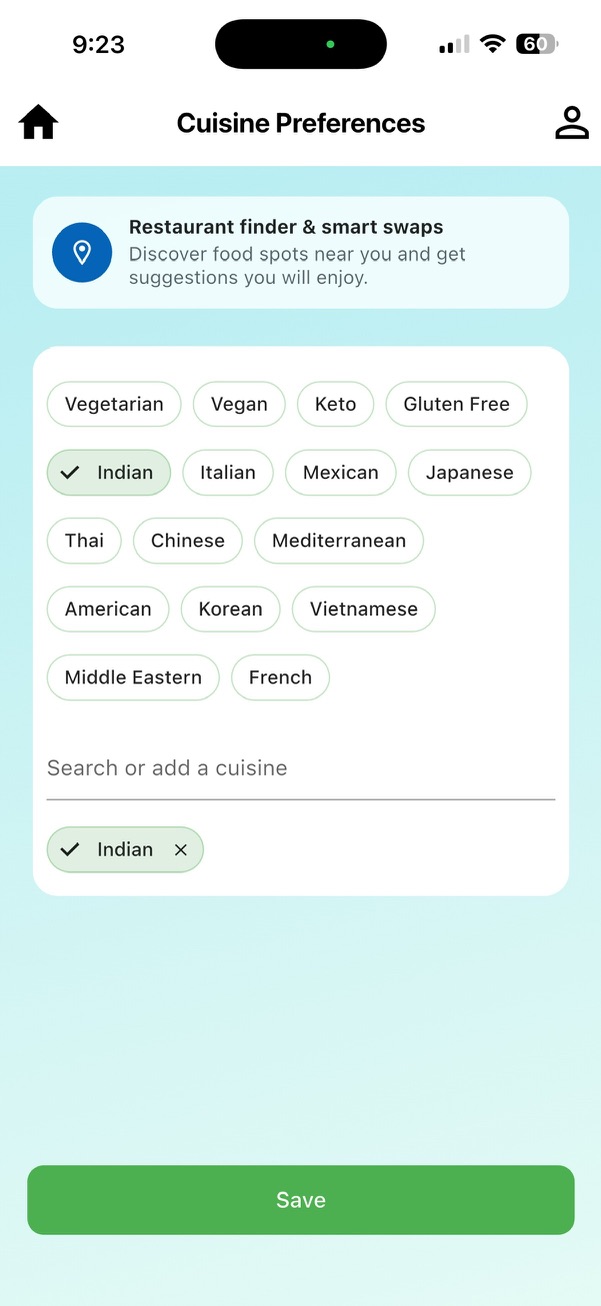
The engine cannot protect you until it knows your body's unique safety parameters. Your profile functions across three explicit vectors.
Step A: Configure Your Health Conditions
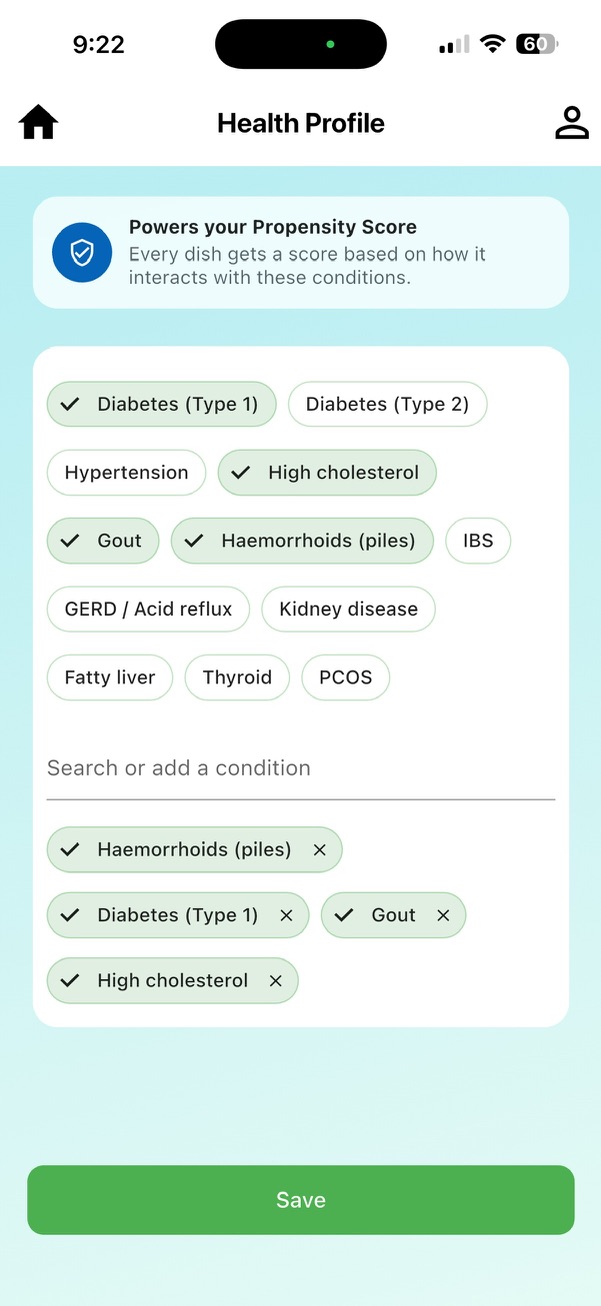
- Navigate to your Profile Screen → tap Health Profile.
- Tap the Add (+) icon in the top right corner to browse or search our clinical library of 300+ chronic conditions.
- Select your active constraints (e.g., Diabetes (Type 1), Gout, High Cholesterol, or Hemorrhoids).
- To remove an incorrectly selected condition, simply tap the Red Trash Can icon next to the item.
Step B: Declare Structural Allergies
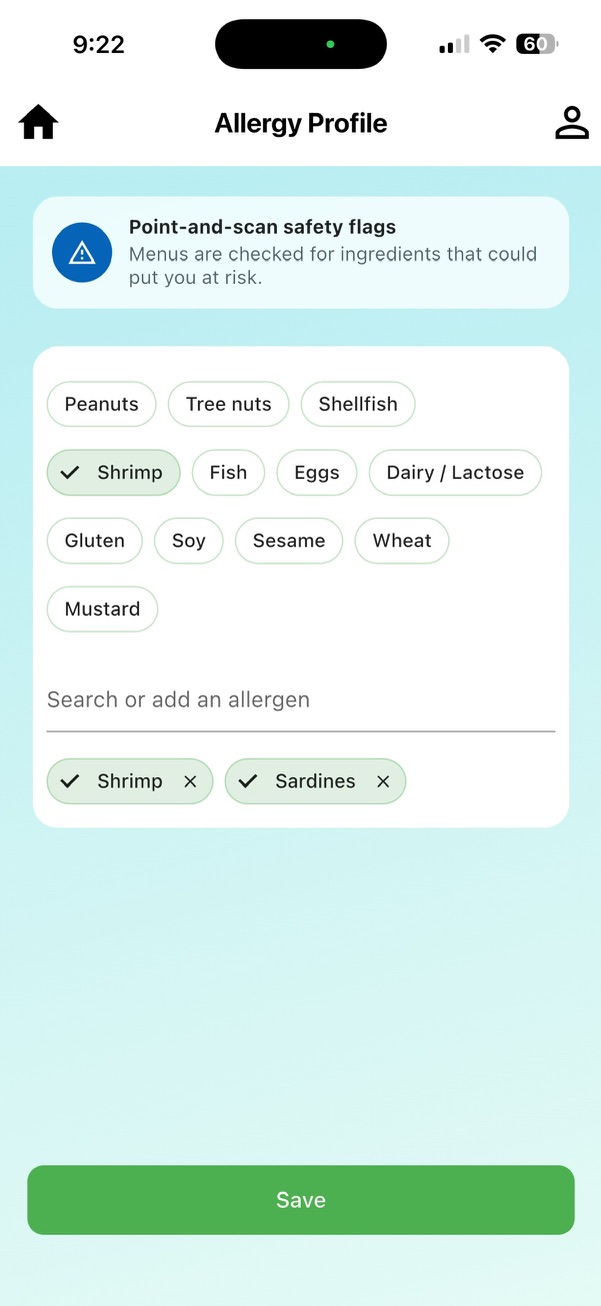
- Tap Allergies within your preferences menu.
- Choose from our master directory of 80+ structural allergens (e.g., Crab, Sardines, Shrimp).
- Hit Save Preferences to commit your selections to your local device memory.
3. Deep-Dive: Your Health Blueprint Dashboard
The Health Blueprint is the foundational control deck where your unique medical parameters are mapped out. Instead of viewing your health through a single condition, this layout compiles your entire physiological perimeter to guide the underlying AI reasoning models.
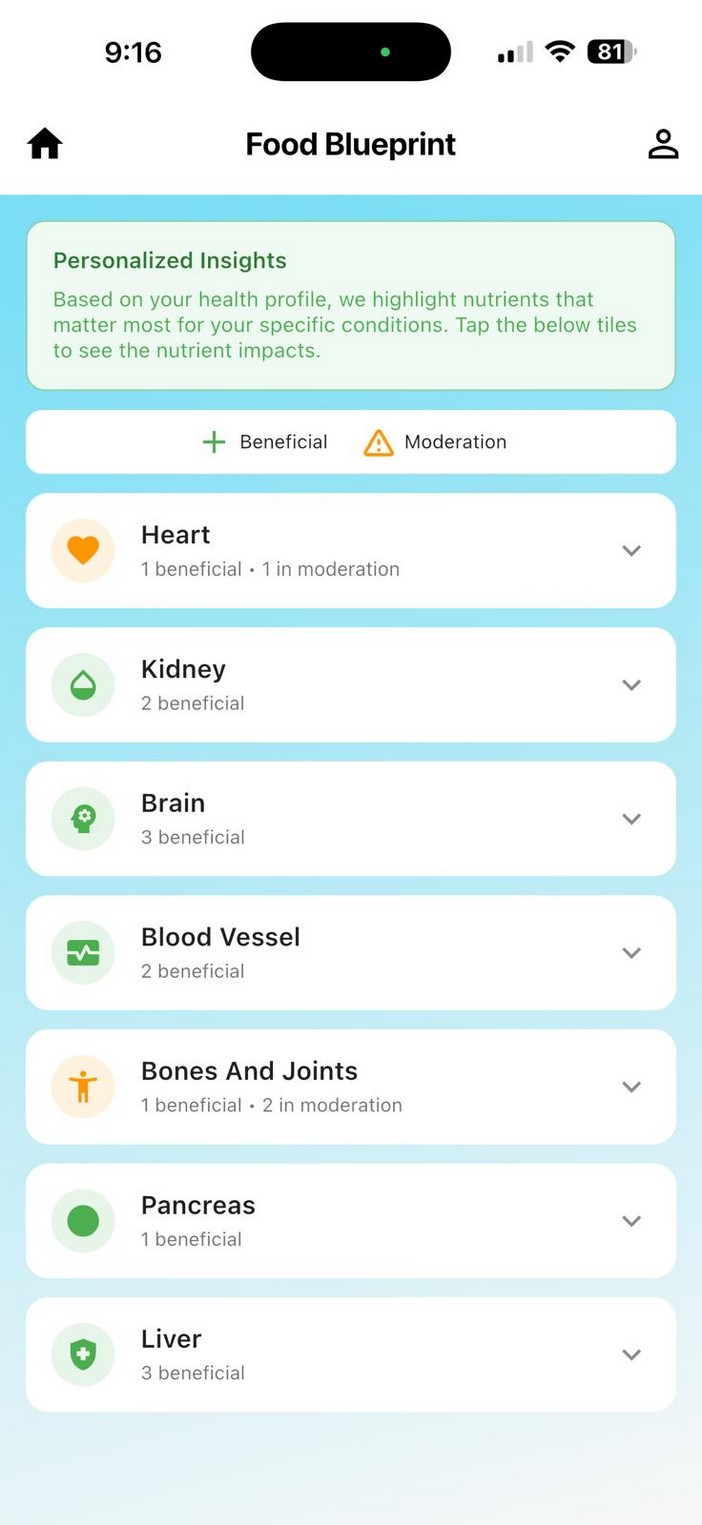
- The Dashboard Layout: Tap Food Blueprint from your analysis hub to view a systemic breakdown of your vital body networks.
- Systemic Mapping: The app organizes your configurations into high-visibility collapsible rows for your vital organs and bodily systems:
- Heart & Blood Vessels
- Kidney & Liver
- Brain & Pancreas
- Bones and Joints
- Understanding the Indicators: When you expand a system panel (e.g., Heart), the app explicitly highlights exactly how many active nutrients or ingredients in your diet are currently marked as Beneficial (green + icon) or require Moderation (orange triangle ! icon) based directly on your chronic profile.
4. Using the Health Compass Engine
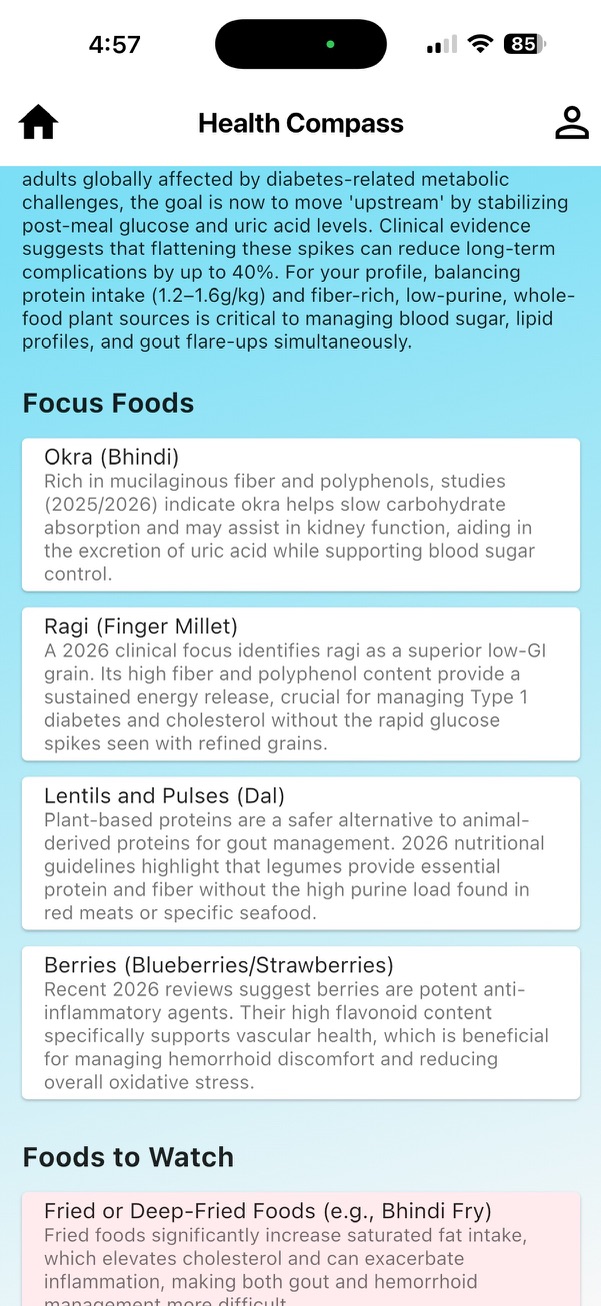
The Health Compass is your daily real-time clinical reasoning center. It automatically cross-references your entire profile matrix to find overlapping, safe dietary intersections so you never have to parse conflicting medical advice.
- Tap Health Compass on your main dashboard screen.
- Review Your Top Narrative: Read the automatically synthesized daily dietary macro goals tailored to your overlapping conditions (e.g., targeted protein counts like 1.2–1.6 g/kg paired with low-purine parameters).
- Focus Foods (Green Cards): Explore items explicitly flagged as highly beneficial to your body based on direct medical logic.
- Foods to Watch (Red Cards): Review localized preparation warnings (e.g., highlighting that while raw Okra/Bhindi benefits blood sugar, preparing it as Bhindi Fry introduces dangerous saturated fats that threaten cholesterol and inflammation thresholds).
5. Scanning Menus & Evaluating Food Items
DietMaze features an instant, point-of-consumption camera evaluation loop driven by a custom Propensity Scoring Architecture.
- Tap Scan Menu / Food from the quick actions hub.
- Align your phone's camera grid over a printed restaurant menu, a grocery ingredient label, or upload a photo from your camera roll.
- Tap Scan.
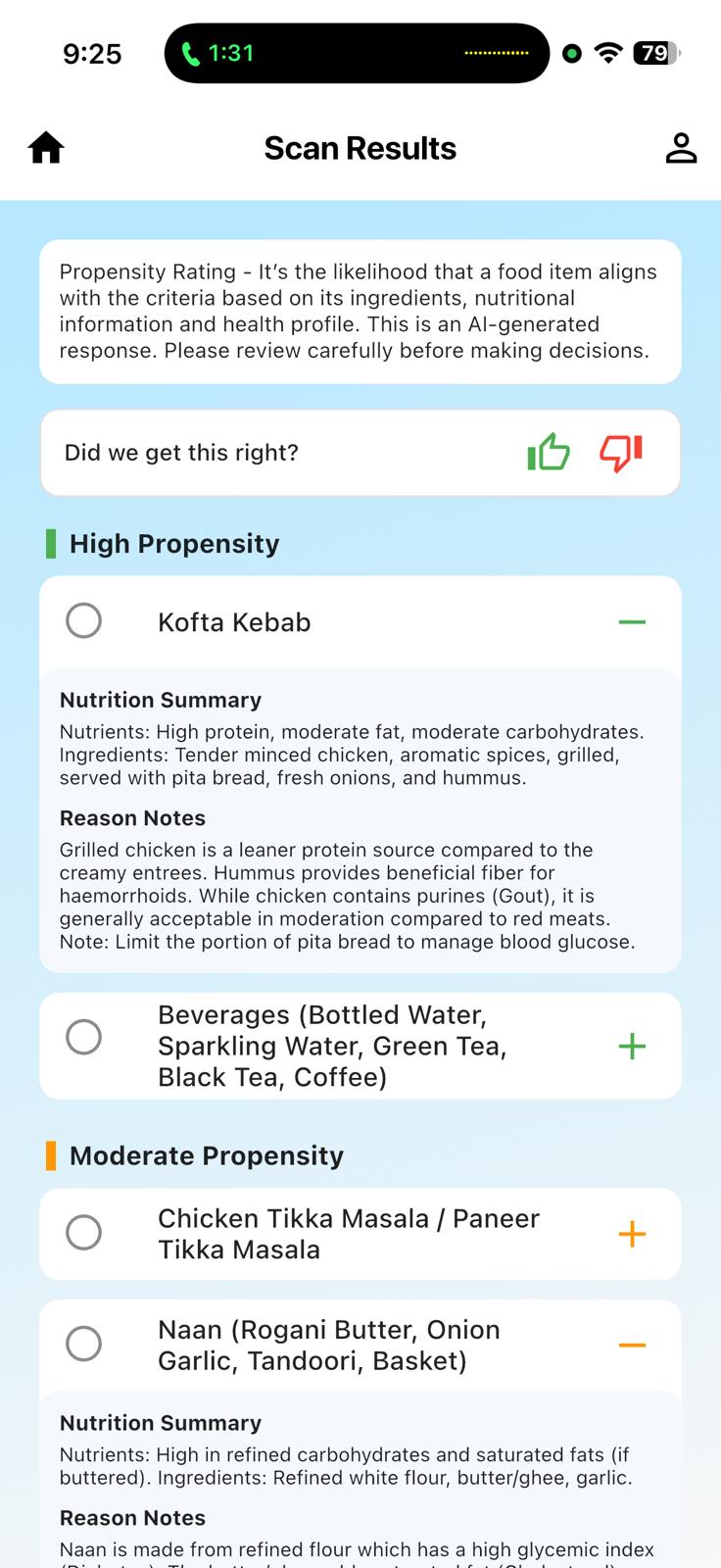
- Interpret Your Propensity Rating:
- 🟢 High Propensity: Great likelihood that this food item actively benefits your underlying clinical profile.
- 🟡 Moderate/Medium Propensity: Safe to eat, but note the explicit structural ingredients required for moderation.
- 🔴 Low Propensity: Direct risk factor identified that conflicts with an active allergy or condition.
- Read the Reason Notes: Expand the food item card to read an explainable AI breakdown explicitly itemizing why the score was given based on your profile constraints.
6. Deep-Dive: Search Restaurants
The Search Restaurants feature allows you to step into the community with complete confidence, turning local dining maps into an intelligent, personalized safe zone.
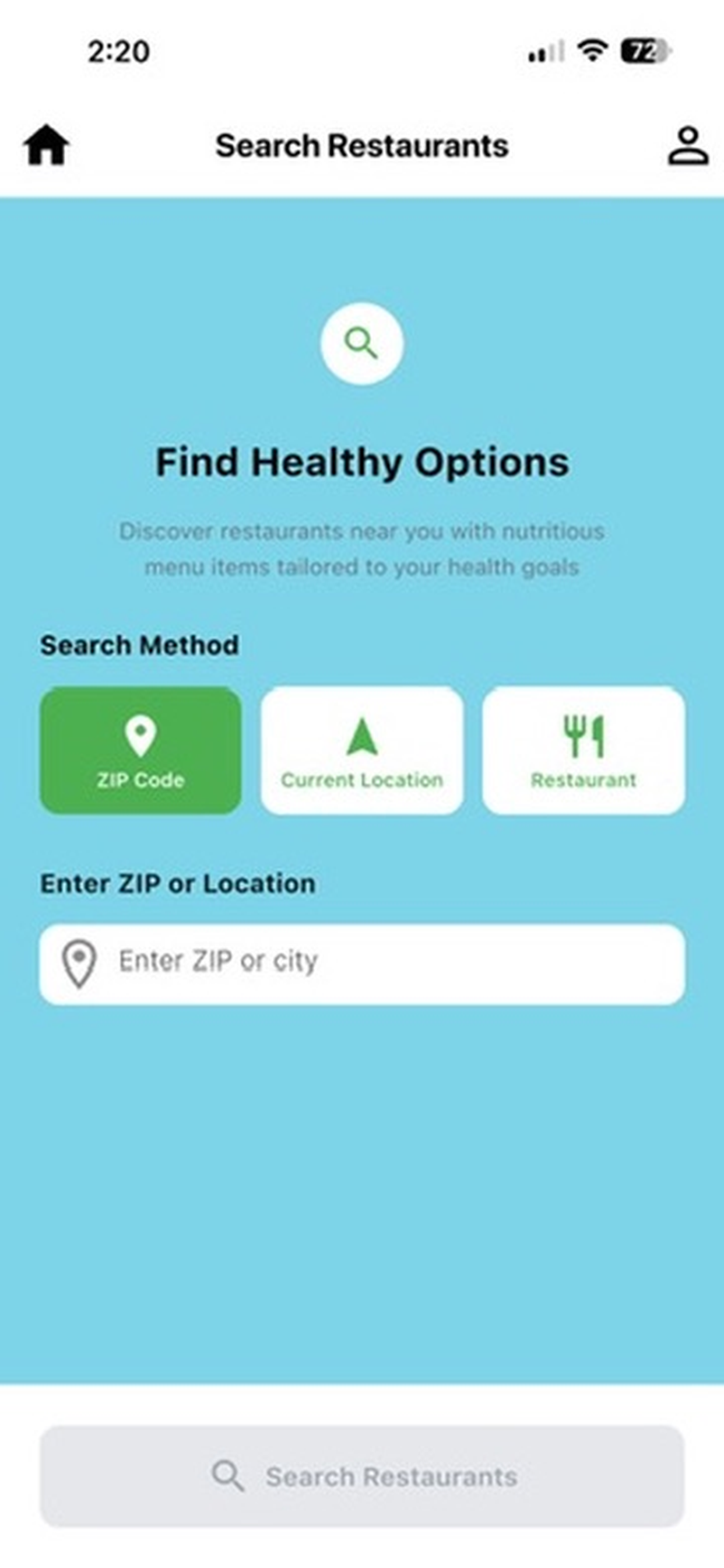
- Tap Search Restaurant on your quick actions dashboard.
- Choose Your Search Method: Select either ZIP Code to input a specific location or Current Location to use your phone's real-time coordinates.
- The Intelligent Filter Loop: Tap Search Restaurants. The engine automatically crawls local dining options and screens out locations that cannot accommodate your profile, defaulting strictly to establishments in your immediate area.
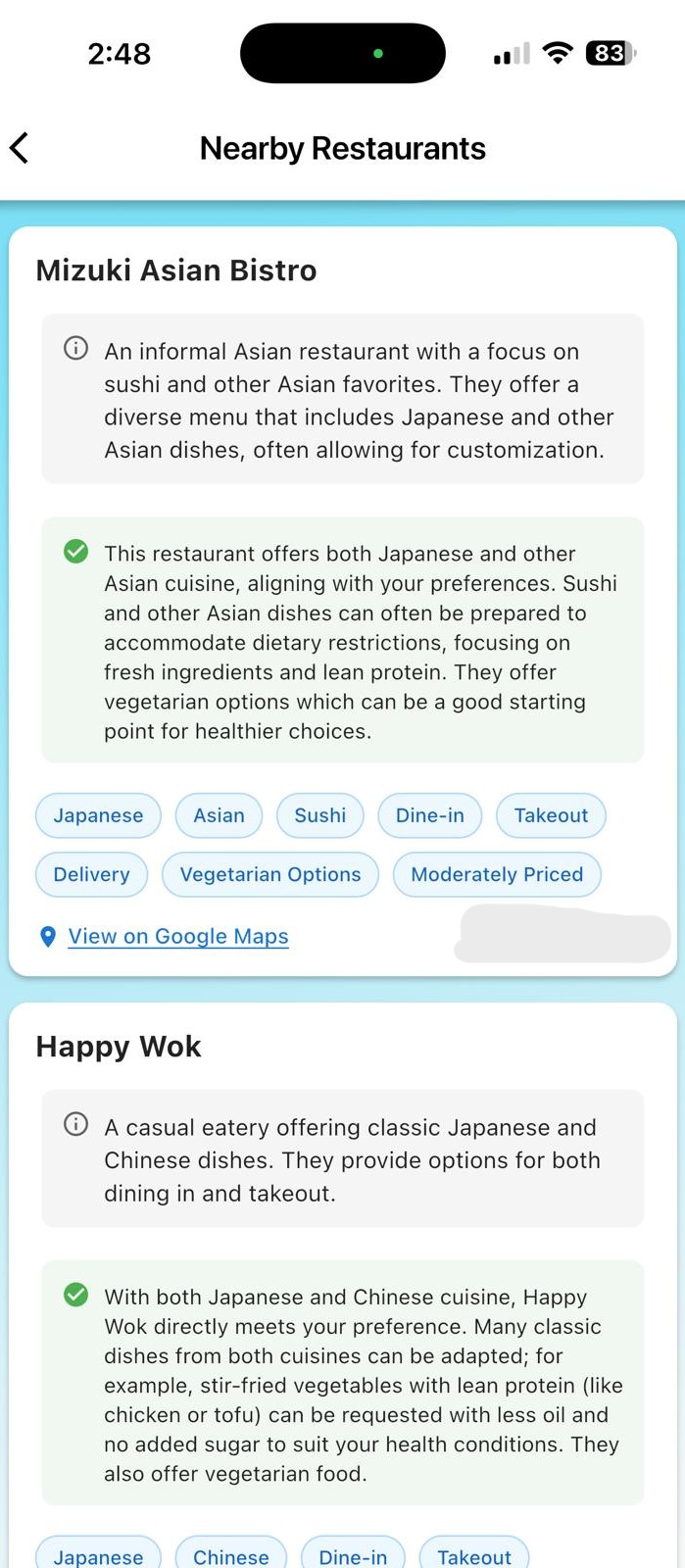
- Analyzing Nearby Restaurants:
- Select a venue to view a localized summary.
- The app displays a green checkmark notice verifying exactly how the restaurant's baseline cuisine style matches your targets (e.g., confirming the availability of lean proteins, fresh ingredients, or healthy customization paths).
- Explore the smart tag wrappers tailored to your preferences (e.g., Vegetarian Options, Dine-in, Takeout, Moderately Priced).
- On-Demand Navigation: Tap View on Google Maps at the bottom of any restaurant card to open native navigation lines instantly.
7. Deep-Dive: Your Food Journal & Daily Report
Your Food Journal is your primary tool for tracking daily inputs and generating automated nutritional summaries.
Logging a Meal:
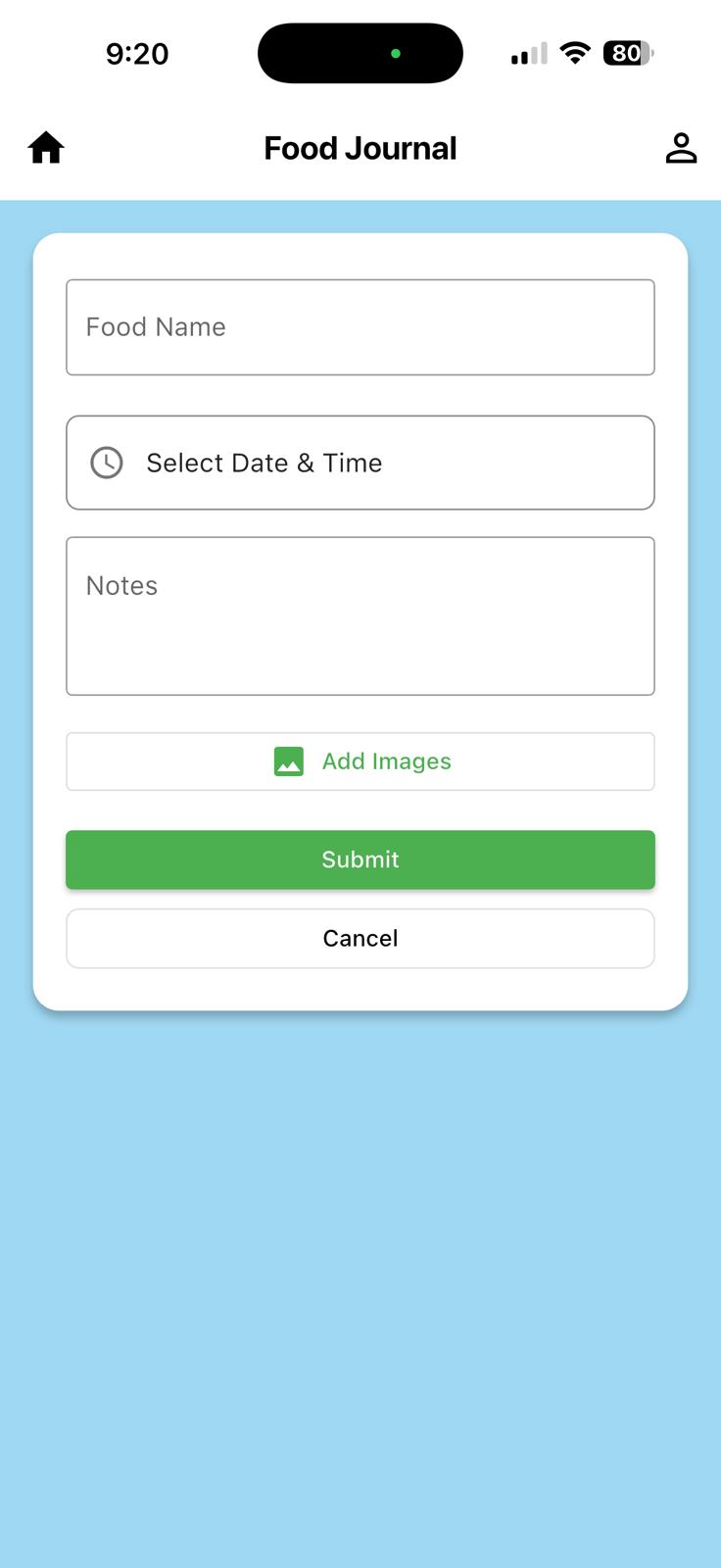
- Tap Food Journal from the dashboard.
- Input the exact Food Name into the entry field.
- Tap Select Date & Time to accurately log the entry chronologically.
- Add custom text in the Notes box to specify preparation styles, portion sizes, or symptom tracking.
- Tap Add Images to upload a photograph of your plate for comprehensive log recording.
- Hit Submit.
Interpreting Your "Today's Report":
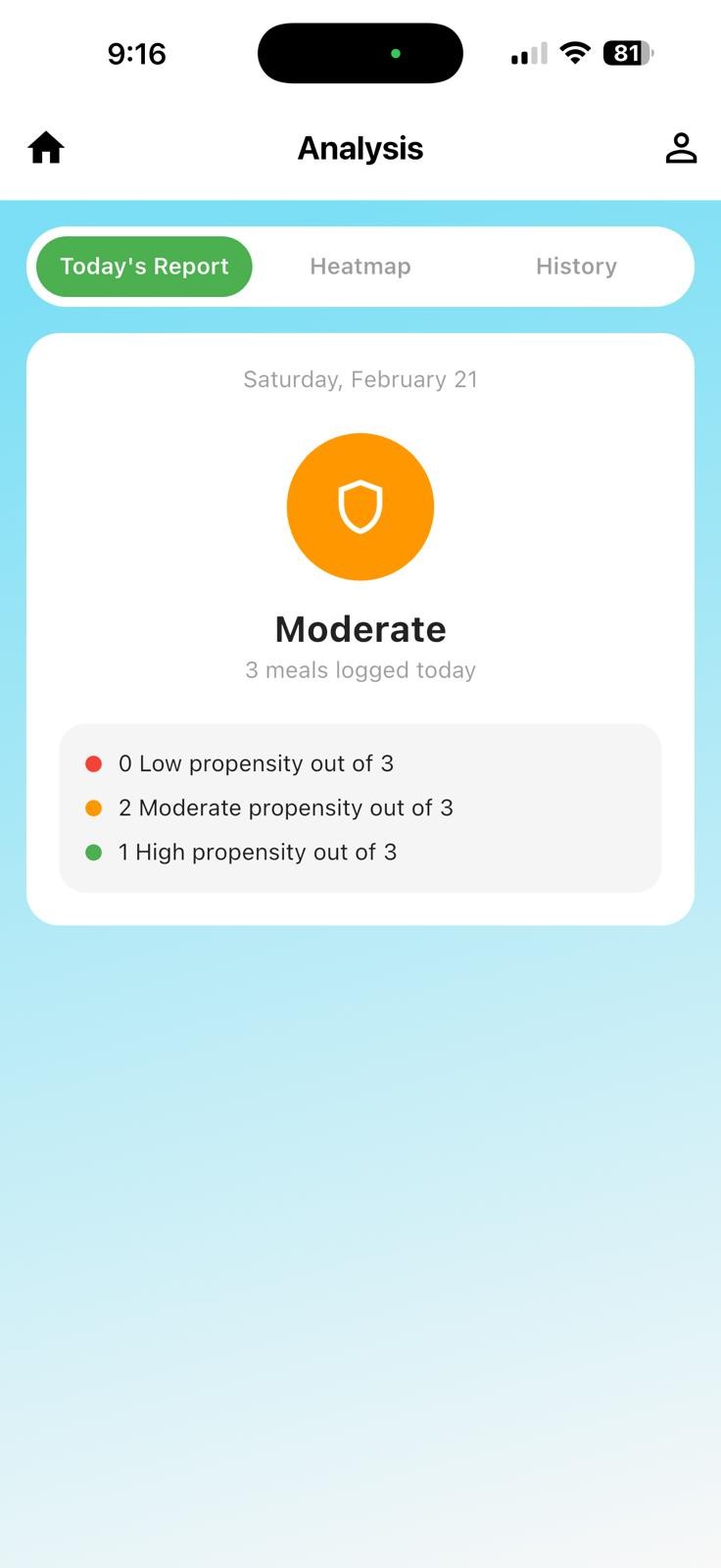
- Tap the Today's Report tab inside your analysis hub.
- The screen displays an on-demand clinical shield reflecting your aggregate score for the day (e.g., Moderate or High Propensity) based on the number of meals logged.
- Review the bulleted summary panel showing your exact score distribution breakdown (e.g., 1 High propensity out of 3, 2 Moderate propensity out of 3, 0 Low propensity out of 3) to monitor your day-to-day choices at a glance.
8. Deep-Dive: Heatmap & Complete Meal History
The analysis suite compiles your historical logging data into two distinct self-service views: long-term trajectory metrics and a granular chronological log.
Navigating the Interactive Heatmap:
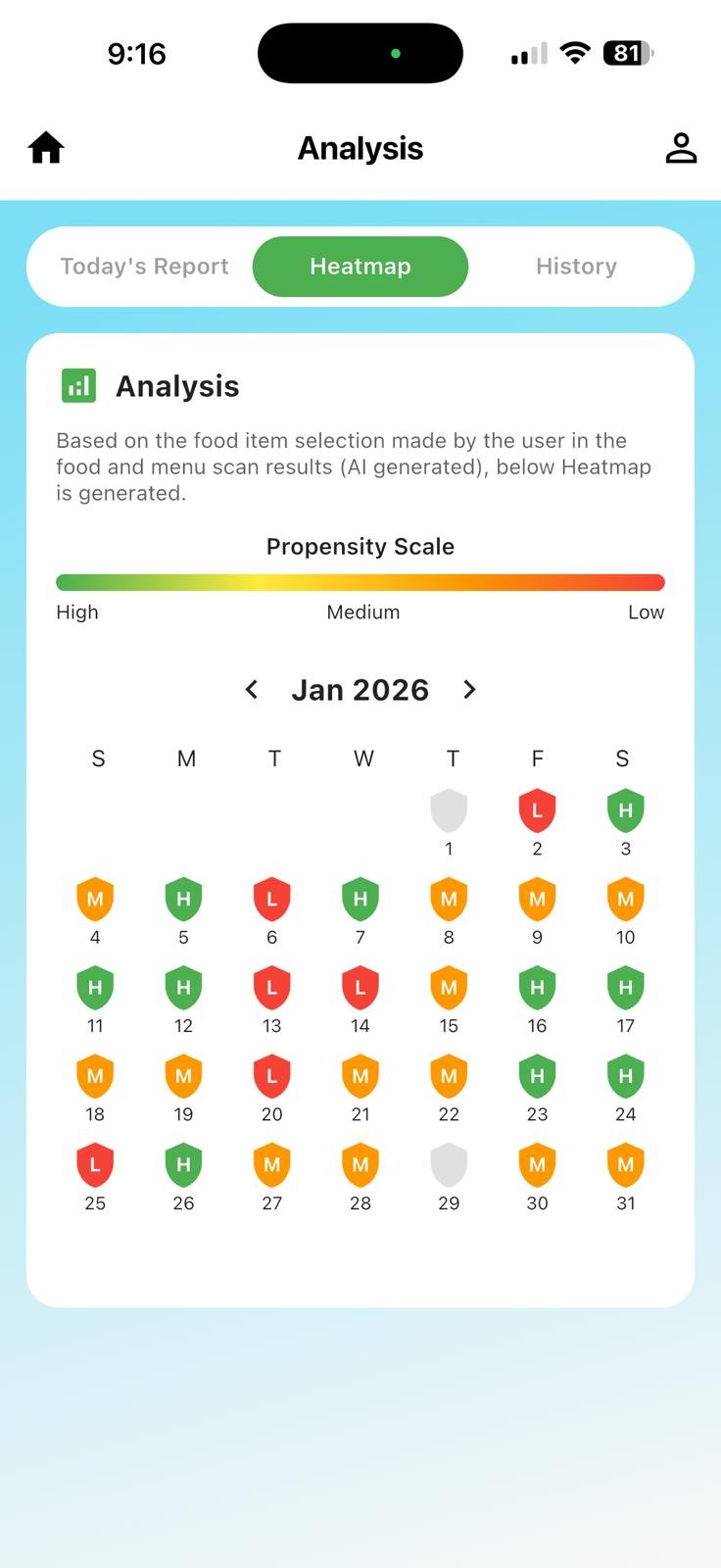
- Tap the Heatmap tab inside your analysis controls.
- The Adherence Calendar: The engine generates a clean 31-day monthly calendar grid populated with color-coded Propensity Shields matching your daily averages.
- Reading the Shield Indicators:
- 🟢 H (High Propensity): A day of ideal dietary adherence with maximum alignment to your health matrix.
- 🟡 M (Medium Propensity): A day where foods required slight moderation or careful tracking.
- 🔴 L (Low Propensity): Flags a day where a logged item directly conflicted with a chronic baseline or severe allergy warning.
- ⚪ Blank/Grey Shields: Days with zero logged meal entries.
- Use the left and right directional arrows (< or >) to scroll across previous monthly histories to evaluate consistency patterns over time.
Reviewing and Cleaning Your History:
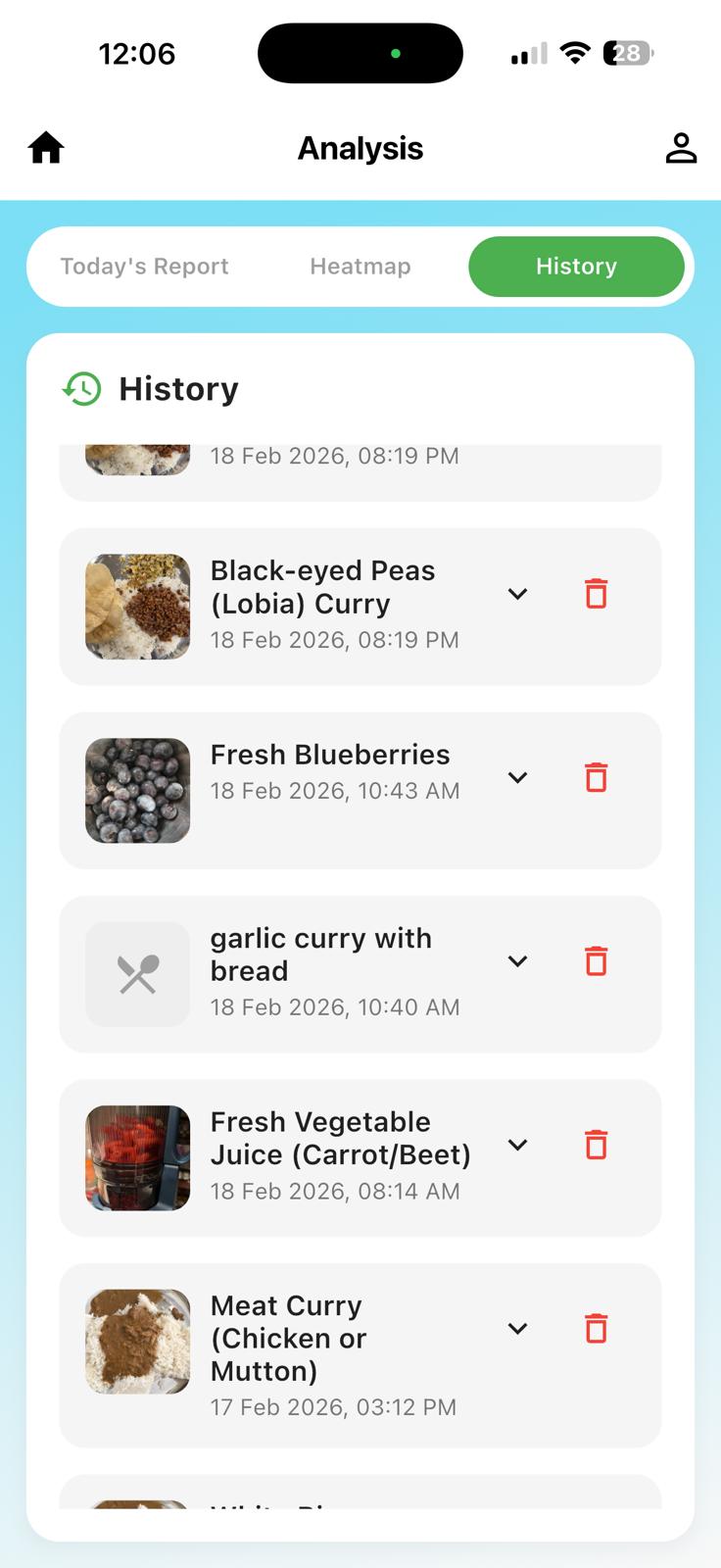
- Tap the History tab to access your master chronological list.
- Every past meal is itemized cleanly with its name, logged photograph, and an automated timestamp.
- Tap the dropdown arrow (v) on any historical meal block to re-expand its original Nutrition Summary and Reason Notes.
- Data Pruning: If you accidentally log an incorrect item or wish to prune a record, tap the Red Trash Can icon on the right side of that entry block to permanently delete it from your local history logs instantly.
9. Exporting Your History Report
DietMaze allows you to export your data into a professionally formatted document, making it easy to share with your primary care physician, endocrinologist, or value-based care manager during routine check-ups.
How to Generate Your Export:
- Navigate to the History tab within your main analysis controls.
- Tap the Export Report (📤) icon located in the upper right-hand corner of the screen.
What is Included in the Document:
- Your active Health Blueprint Matrix layout (the list of tracking parameters you managed during that period).
- Your overall Adherence Score Percentage calculated from your high, medium, and low propensity meal counts.
- A chronological log of every entry from your Food Journal, including timestamps, your custom text preparation notes, and the specific clinical reason notes compiled by the engine.
Sharing & Data Security:
Once generated, your native iOS sharing sheet will slide up. You can securely beam the file to a wireless office printer via AirPrint, text it to a family member, or pass it directly into your clinic's patient portal app. Because your data is handled under strict Data Sovereignty protocols, this file is compiled locally — DietMaze never automatically routes this document to third parties or insurance networks without your manual direction.
10. Managing Your Data Sovereignty & Privacy Rights
Because you are tracking highly sensitive health data, DietMaze enforces strict consumer privacy frameworks.
How to Limit or Revoke Data Processing Consent
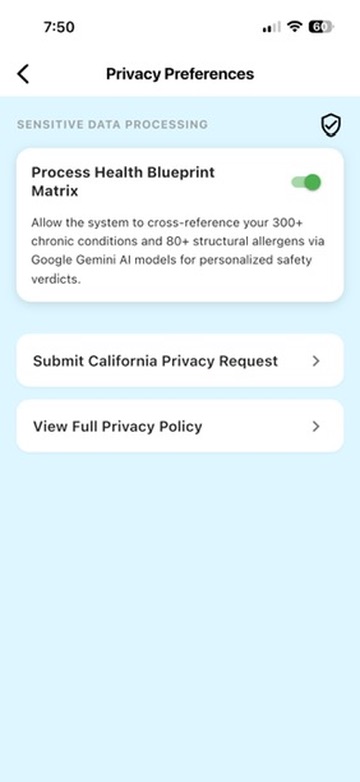
- Navigate to your Profile Screen → tap Privacy Preferences.
- Process Health Blueprint Matrix Toggle: Turning this switch OFF revokes active cloud-processing consent. The app immediately clears temporary memory caches, stops server communication to the processing model, and locks the home screen until you opt back in.
- Personalization Performance Tracking Toggle: Turn this switch OFF to completely disable localized analytical history tracking.
How to Submit a CCPA "Right to Know" or "Right to Delete" Request
- Direct Shortcut: Scroll to the bottom of the Privacy Preferences sub-menu and tap Submit California Privacy Request. Write a note to support@dietmaze.app with the subject line "California Privacy Rights Request".
- Fulfillment: Our compliance desk will verify your registered account identity and permanently purge or export your data packet within 45 days.
11. Managing Premium Subscriptions
- Cancellation Policies: If you choose to permanently delete your account, you must terminate recurring credit card lines directly within your iOS account interface (Settings App → Tap Your Name → Subscriptions), as independent mobile developers are legally barred from altering your Apple ID billing files from the outside.